How to Add a New Course on Duolingo (2026 Guide)
How to Add a New Course on Duolingo (2026 Guide)
How do you add a new course on Duolingo? On the app, tap the flag icon at the top of your home screen, tap the plus sign, and pick a language. On the web, click the flag icon and choose Add a new course. It takes under a minute, and adding a course never deletes your progress in another one.
Takeaways
- On the app: tap the flag icon at the top of the home screen, then tap the rectangle with the plus sign, then pick your course.
- On the web: go to duolingo.com, click the flag icon at the top right, and choose Add a new course.
- Adding is not switching. Adding creates a new course; switching moves between ones you already have.
- Each course is tracked separately. Your Spanish progress, your French progress, and your streak all live side by side — nothing is overwritten.
- You can also add Math, Music, and Chess. They sit in the same course list.
- Removing a course is permanent. It deletes all progress in that course, and it cannot be undone.
Quick answer
- Open Duolingo and sign in to the right account.
- Tap the flag icon at the top of the home screen (app) or click it at the top right (web).
- Tap the plus sign (app) or choose Add a new course (web).
- Pick the language — or Math, Music, or Chess — you want to learn.
- Choose your level: start from the beginning, or take a placement test to skip ahead.
How do I add a new course on the Duolingo app?
The steps are the same on iPhone and Android. Duolingo’s own guide describes one flow for the app, and it works the same on both phones. Here it is, one action per step:
- Open the Duolingo app and make sure you are signed in to the right account — adding a course to the wrong one is the most common mistake here.
- Go to the home screen. This is the learning path — the winding trail of lesson circles.
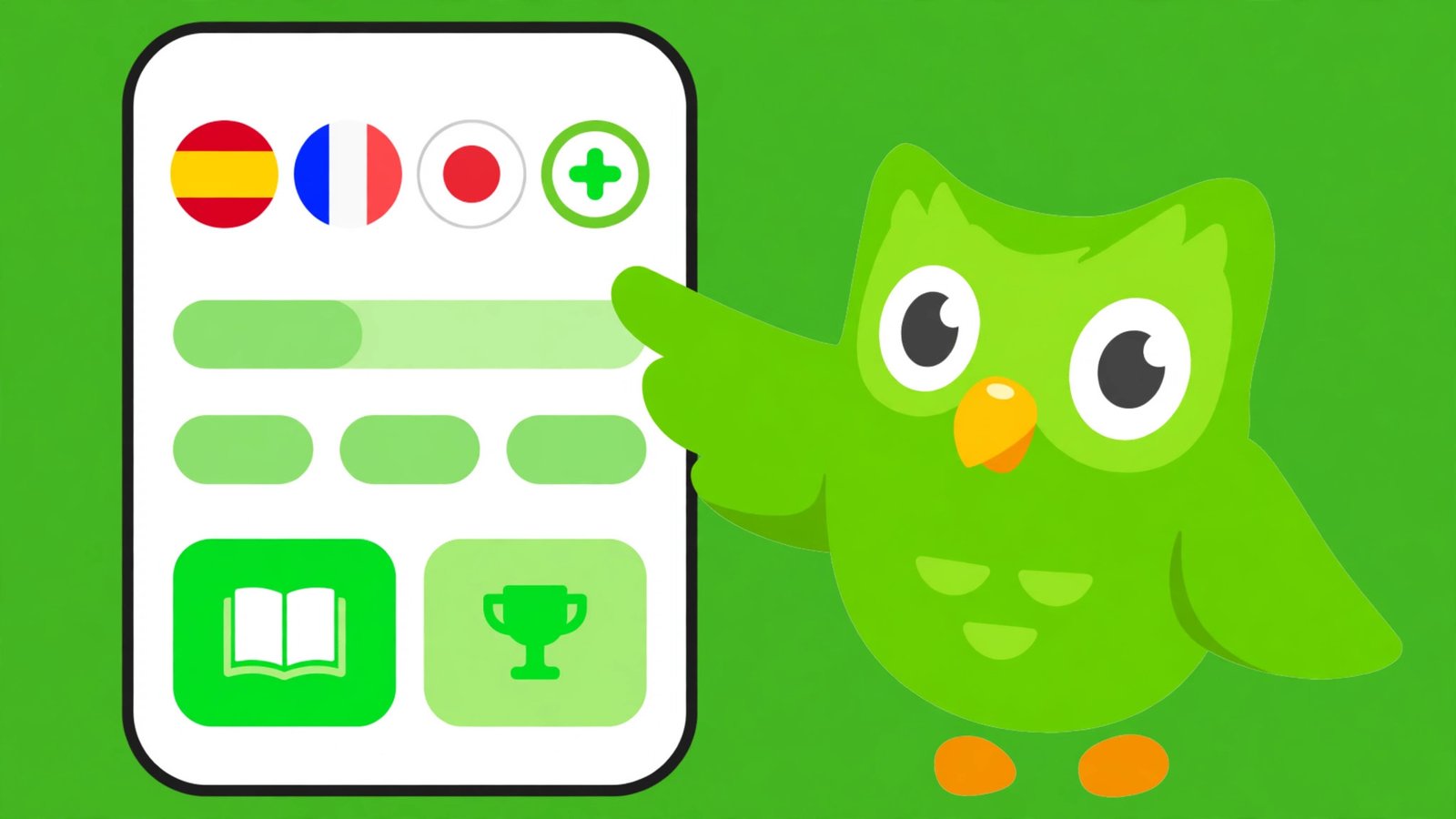
- Tap the flag icon at the top of the screen. The flag shows the language you are learning right now. On most phones it sits at the top left of the home screen.
- Tap the rectangle with the plus sign. A list of your courses appears, with a blank rectangle marked + at the end — tap it to see the full course list.
- Pick your course. Browse the list or search by name. Math, Music, and Chess sit in the same list.
- Choose your level. Take the placement test if you already know some of the language, or start from the beginning.
- Do your first lesson. Once you finish the placement test or start from the beginning, you are taken to your first lesson. That is it — the course is added.
What you should see: after step 3, your course list with the plus-sign rectangle at the end. After step 5, Duo asks “What would you like to learn?” After step 7, your home screen shows the new course’s path.
What this means for you: the flag icon is the only button you need to remember — it opens your course list, adds courses, and switches between them.
How do I add a new course on the Duolingo website?
The web flow is nearly identical, with one different label. Here are the steps:
- Go to duolingo.com and sign in to your account.
- Click the flag icon at the top right of the page. It shows the language you are learning right now.
- From the drop-down menu, select Add a new course.
- Choose the language you want to learn from the list.
- Pick your level, then click Start or Continue. Take the placement test if you know some of the language, or start from the beginning.
- Complete the first lessons. The course now appears in your list on every device.
What you should see: after step 2, a drop-down with your courses and Add a new course at the bottom. After step 6, the new course’s learning path.
| App (iPhone and Android) | Website (duolingo.com) | |
|---|---|---|
| Open the course list | Tap the flag icon at the top of the home screen | Click the flag icon at the top right |
| Add a course | Tap the rectangle with the + sign | Choose Add a new course from the drop-down |
| Choose your level | Placement test or start from the beginning | Placement test or start from the beginning |
| Where the course appears | On every device, once it syncs | On every device, once it syncs |
| Non-language courses | Math, Music, Chess in the same list | Math, Music, Chess in the same list |
What this means for you: if the plus sign is hard to find on your phone, use the website instead. The course appears in the app within seconds, because your courses sync across devices.
What happens after I add a course?
You choose a starting point, and then the course behaves like any other on your account.
The placement test. If you already know some of the language, take the placement test — it measures what you know and drops you into the path at the right place. If you are not sure of your level, take it anyway: starting too low wastes weeks, and the test is free. Chess learners get a practice match with Oscar, Duolingo’s character, to set their level.
Starting from the beginning. You begin at the first lesson: basic words, basic sentences, and the alphabet if the language uses a different script. There is no penalty for starting at the beginning, and the app will offer to let you test out of skills as you go.
Your old course is untouched. Adding French does not pause, reset, or delete your Spanish. Each course keeps its own path and progress — leave one alone for months and come back to exactly where you left it.
Your streak and XP are shared. Your streak belongs to your account, not to one course — any lesson in any subject counts toward it, so you can mix languages freely. XP from every course feeds the same daily goal and weekly league total too. That is convenient, but leagues reward XP, not learning. For the mechanics, see our guide to how a Duolingo streak works, and our guide to how league demotion works.
What this means for you: adding a course is a low-risk experiment — no cost, no penalty, no effect on the course you already have. Add it, do three lessons, and decide later.
How do I switch between courses?
Switching is not adding — it changes which course you are studying right now, among the ones you already have. The steps are shorter than adding:
On the app, tap the flag icon at the top of the home screen, then tap the course you want. Your home screen switches to that course’s path immediately. On the website, click the flag icon at the top right, then click the course. The flag icon always shows your current course, so a glance tells you which language you are in.
What this means for you: if the language you want is already in the list, you are switching, not adding — just tap it. The plus sign is only for languages not in your list yet.
Can I learn more than one language at once?
Yes — and Duolingo is built for it. There is no published limit on how many courses you can add, and each one is tracked separately. But two languages at once work better with a plan than with enthusiasm alone.
The honest answer has two sides. Variety keeps you interested, and a second language reuses the habit you already built. Many learners keep a “main” language and a “fun” language: 15 minutes on the main one, 5 on the fun one. But two new languages split your attention, and two similar ones — Spanish and Italian, for example — will mix in your head for weeks.
Three rules that make it work:
- One main language, the rest are side quests. Give your main language most of your daily time; a second language gets whatever is left.
- Do not start two languages on the same day. Build the habit in one language first, then add the second after a month.
- Keep similar languages apart. Spanish and Portuguese, or Dutch and German, are the hardest pairs to learn together. Pick two that sound different — Spanish and Japanese barely interfere.
What this means for you: two languages is realistic; three is a hobby, not a plan. Put 80% of your time on the one you actually want to speak. And if you are starting Spanish, our guide to the best way to learn Spanish for beginners is a better starting point than a second course.
What courses can I add besides languages?
Duolingo now teaches more than languages. The same course list also holds three free non-language subjects, and they work the same way: add them, do lessons, keep a streak.
| Course | What it teaches |
|---|---|
| Math | Arithmetic, fractions, and everyday maths problems |
| Music | Reading sheet music and playing tunes on screen |
| Chess | How the pieces move, tactics, and full games — with a practice match against Oscar to set your level |
All three count toward your streak, so on a day when you are tired of your language, a 3-minute music lesson can save a 200-day streak. If you only want languages, ignore these.
Which languages can I add?
Duolingo offers 40+ languages, and the list you see depends on your base language — the language the app itself uses, usually English. English speakers see the longest list, including Spanish, French, German, Italian, Japanese, Korean, and Chinese.
Two limits are worth knowing before you go looking:
- Duolingo does not teach Thai or Tagalog. If you want Thai or Tagalog, you will need another app — Duolingo simply does not offer those courses, and no amount of searching the course list will find them.
- Not every language goes as far as the big ones. The nine biggest courses teach through B2 (upper intermediate) since April 2026; smaller courses stop earlier. A small course is still a good start, but check how far it goes before you commit months to it. Our German review and French review show what the big courses cover.
What this means for you: if the language you want is in the list, add it and start. If it is not, it is not hidden — it is not offered. Our list of the alternatives to Duolingo covers the languages Duolingo does not.
How do I remove a course?
Removing a course permanently deletes all your progress in it — and it cannot be undone. Be sure before you tap confirm. If you just want a break, do not remove it. Leave it alone — it will wait for you exactly where you left it.
If you are sure, here are Duolingo’s own steps for the app:
- Tap the circle with 3 dots at the bottom of your screen, then tap Profile.
- Tap the gear symbol in the top right corner to go to your settings, then tap Courses.
- Tap the course you want to remove, then confirm it.
What you should see: after step 2, a list of your courses. After step 3, a confirmation screen warning you that your progress will be deleted. The course disappears from your list as soon as you confirm.
Removing a course in the app removes it everywhere, because your courses sync across devices — you do not need to repeat the steps on the web.
Before you remove a course, check two things:
- Is it the right course? The confirmation screen shows the course name. Read it — removing Spanish when you meant French cannot be undone.
- Do you actually want it gone? A course you are bored with today might be the one you want in six months. If you are unsure, just switch to another course and leave this one alone.
What this means for you: removal is the one action in this guide with no undo button. Everything else is reversible — treat removal as the exception, not a tidy-up.
What if I don’t see the option to add a course?
The plus sign is usually missing for a fixable reason. Work through this table before you give up:
| Problem | Likely cause | Fix |
|---|---|---|
| No plus sign in the course list | App is out of date | Update Duolingo in the App Store or Google Play, then force-close and reopen |
| No plus sign after updating | Signed in to the wrong account | Check the profile icon — sign out and sign in to the right account |
| Flag icon is missing entirely | You are not on the home screen | Go to the home screen (the learning path), not Profile or the Shop |
| Course list loads but is empty | No internet connection | Check your connection — the list needs the internet to load |
| Plus sign appears, then disappears | A/B test or a temporary glitch | Force-close and reopen the app; if it is still missing, use duolingo.com |
| Language is not in the list | Duolingo does not offer it | Check on the web too — if it is not there either, the course does not exist |
The web fallback fixes almost everything. If the app will not show the plus sign, add the course on duolingo.com — it appears in the app within seconds. If the web version does not show it either, the problem is your account: sign out everywhere and sign back in.
What this means for you: an app update and a force-close fix the problem nine times out of ten. Duolingo tests different layouts on different accounts, so your screen may look slightly different from a friend’s.
Bottom Line
Adding a new course on Duolingo takes under a minute: tap the flag icon, tap the plus sign, pick your language, and choose your starting level — or do the same on duolingo.com with Add a new course. Each course is tracked separately, your streak is shared, and removing a course is the only step you cannot undo. If the plus sign is missing, update the app or use the website.
Next: once your course is added, keep the habit alive with our guide to how a Duolingo streak works. For faster progress, read our Duolingo tips and tricks. And when you are ready to speak, not just tap, see our guide to practicing speaking with Duolingo.
Frequently Asked Questions
On the app, tap the flag icon at the top of the home screen, tap the plus sign, pick your language, and choose your level. On the website, click the flag icon at the top right and choose Add a new course. It takes under a minute.
No. Each course is tracked separately, so adding one never deletes or resets progress in another. Your streak is shared, and any lesson in any course counts toward it.
Yes. Go to duolingo.com, sign in, click the flag icon at the top right, and choose Add a new course. The course appears in the app too, because your courses sync across devices.
Tap the flag icon (top of the home screen on the app, top right on the web), then tap the course you want. Switching moves between courses you already have; adding creates a new one.
In the app, tap the circle with 3 dots, tap Profile, tap the gear symbol, tap Courses, then tap the course and confirm. This permanently deletes all progress in that course. If you just want a break, leave it alone instead.
Usually an out-of-date app, the wrong account, or no internet connection. Update the app, force-close and reopen it, and check your account. If it still does not appear, add the course on duolingo.com instead.
No. Duolingo does not teach Thai or Tagalog — if you want either language, you will need another app.